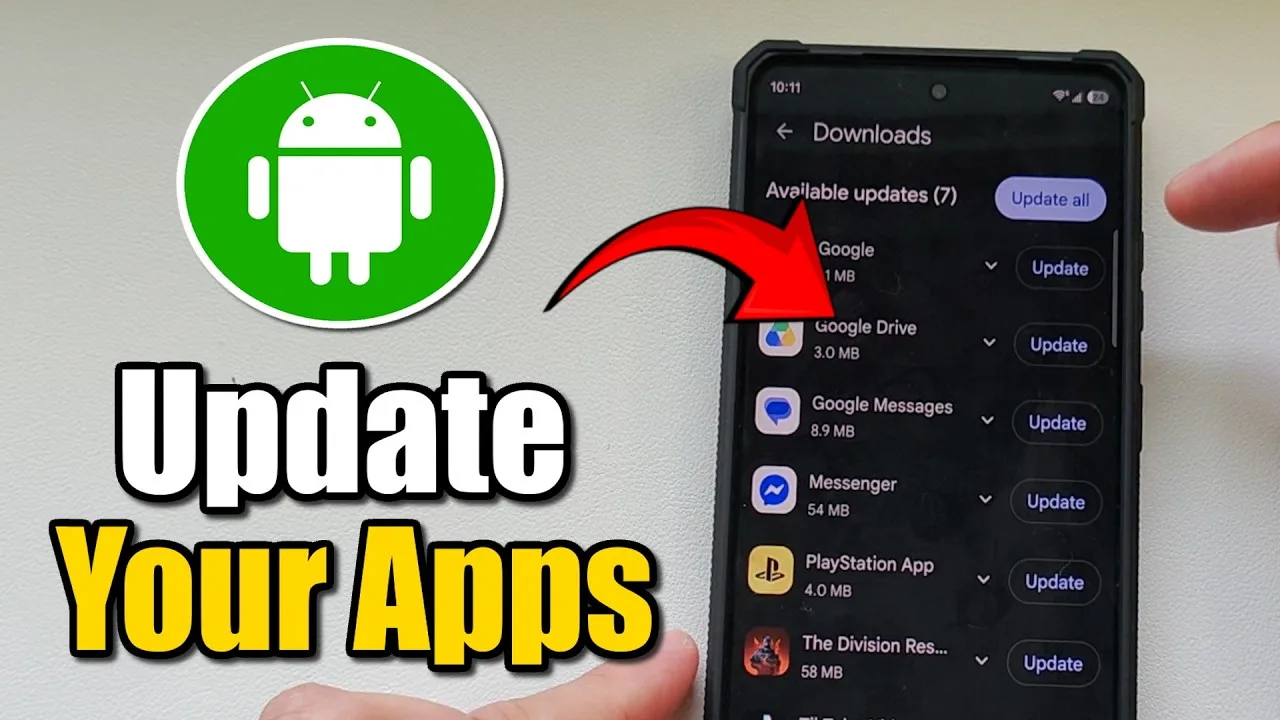
Updating Macro Space Panel should be a boring, predictable routine, yet updates are where many users lose settings, break trusted macros or create problems they then blame on the new version. A calm order of operations, backup first and re-testing last, keeps an update as the small event it ought to be.
You can check the current app details any time via the download the Macro Space Panel Android app page before deciding whether an update is actually needed on your phone.
Back Up Before You Touch Anything
Before updating, save a copy of your macro library and note your key settings somewhere outside the app. Most updates preserve everything, but the one time something resets, a backup turns a ruined evening into a ten-minute restore, and notes cover the small settings a backup might not carry.
The simple storage routine in how to back up your Macro Space Panel macros shows where to keep those copies so they survive a phone change as well as an update, which is exactly the level of safety an update day deserves.
Note What Your Setup Looks Like Today
Take a minute to record your panel position, your main timing choices and which macros you rely on daily. After an update, memory plays tricks: things feel different even when nothing changed, and written notes let you compare reality instead of arguing with a vague impression.
This step also tells you what to re-test. Your daily macros are the acceptance test for the new version, and knowing the list in advance stops the common pattern of updating, playing immediately, and discovering a changed behaviour mid-session.
Install the Update Cleanly
Let the update finish completely before opening the app, and avoid interrupting it by switching apps or letting the phone sleep through a low-battery warning. A half-finished install creates exactly the kind of strange, half-broken behaviour that is hardest to diagnose afterwards.
If you are moving to a new phone at the same time, treat it as a fresh install followed by a restore, using the preparation steps in how to install Macro Space on Android to get the basics right before your library arrives.
Re-Test Your Main Macros First
After updating, run each daily macro once in a calm spot before real use. Updates occasionally change timing behaviour or reset a permission, and a two-minute test catches both while they are still trivial to fix. Only after the daily set passes should you explore anything new the version offers.
If a macro behaves oddly, do not rebuild it immediately. Check its settings against your notes first, because a reset value is far more likely than a macro that genuinely needs rebuilding, and restoring one value is faster than recreating twenty steps.
Decide Whether to Stay or Roll Back Mentally
Give a new version a fair trial of a few sessions before judging it. Some changes feel strange simply because they are new, and your notes plus test results give you evidence instead of first impressions. If real faults persist, you have a backup and a clear record, which keeps any next step calm.
Handled this way, updates stop being events to dread. Backup, notes, clean install, re-test, fair trial: five small steps that protect months of careful macro work and keep your daily setup exactly as trustworthy the day after an update as it was the day before.
Build the Habit Gradually
Treat updating the app as a habit you are building over two or three weeks, not a problem to finish tonight. Small, regular contact with the panel keeps what you learned last time fresh, and each session can add one idea, test it properly, and leave the setup slightly better understood than you found it.
Keep the same order each time you sit down: review what you changed last session, run one quick test, then make today's single improvement. That rhythm sounds plain, and that is its strength, because a plain rhythm is the kind you can still follow on a tired evening.
Signs You Are on the Right Track
Clear signs appear when updating the app is going well: you can predict what a macro will do before it runs, you can explain your setup to someone else in a minute, and fixing a fault starts with a calm check rather than a rebuild. Those are skills, not settings, and they stay with you across devices and updates.
The opposite signs are just as useful. If you hesitate before every run, keep rediscovering the same fault, or cannot remember why a setting is set that way, the setup has outgrown your notes. Shrink it, document it, and let understanding catch up before adding anything new.
Make It Part of Your Routine
Attach updating the app to moments that already exist in your day: the start of a session, the end of one, or the weekly tidy you already do. Habits linked to existing moments survive, while habits that need their own special occasion tend to be postponed until they are forgotten entirely.
Once the routine feels automatic, you can stop thinking about the method and go back to thinking about the play itself. That is the quiet finish line for all setup work: tools that serve the session so smoothly that they disappear from your attention while you use them.
Final Thoughts
An update is only risky when it is rushed. Back up your library, write down today's settings, install without interruption, and re-test the macros you rely on, and a new version becomes a routine improvement instead of a gamble with your whole setup.