Permission prompts make many Android users uneasy, and reasonably so: a request only makes sense when you know what it allows the app to do. This guide explains, in plain language, the kinds of permissions a panel app works with, how to review them on your phone, and how to change them without breaking your setup.
You can review the basic app information first through the Macro Space Panel APK file for Android page, then compare it with the permission list your own phone shows for the installed app.
Why a Panel App Asks for Access
Macro Space Panel works by sitting over other apps and carrying out sequences you record, so Android asks your approval for the abilities that make that possible. An overlay ability lets the panel appear above a session, while accessibility-style access lets it perform steps on your behalf rather than merely displaying them.
Neither request is unusual for this kind of tool, but both deserve a calm read before approving. The point of this guide is not to rush you past the prompts; it is to make sure that when you approve them, you know exactly what you agreed to and where to undo it.
How to Review Permissions on Your Phone
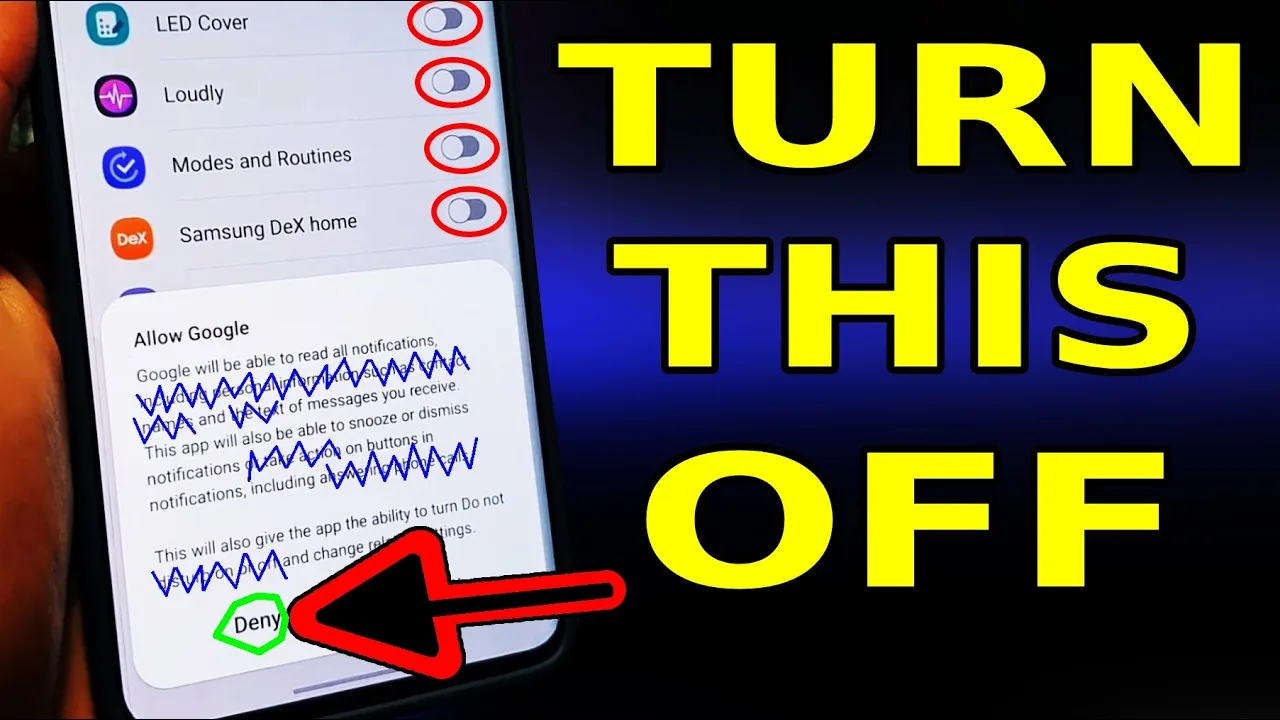
Open your phone's settings, find the app list, open Macro Space Panel, and read its permissions page. Android groups access by type, and each entry can usually be allowed, denied or limited. Reviewing this page occasionally is good practice for every app you own, not just this one.
The preparation checks in how to install Macro Space on Android are a helpful companion here, because they walk through the device basics that should be confirmed before any panel is trusted with a session.
What Happens When a Permission Is Missing
A denied permission rarely breaks the whole app; it usually disables one specific ability. The panel might fail to appear over a session, or a macro might display but not run. That behaviour is actually useful information, because the missing ability points straight at the permission behind it.
When a macro suddenly stops working after months of service, a quietly reset permission is one of the most common causes, and the symptom list in Macro Space common problems and fixes helps you separate that simple cause from more complicated faults.
Changing Permissions Safely
Change one permission at a time, then test the app immediately. If you revoke several at once and something stops working, you will not know which change mattered. Re-approving works the same way: restore one access, test, and continue only when the previous step behaves as expected.
After any permission change, run your most trusted macro once in a calm spot. That single test confirms the panel can appear, the sequence can run, and your daily setup survived the change, which is the whole definition of a safe adjustment.
A Calm Habit for All Your Apps
Once a season, spend five minutes reviewing permissions across the apps you use most. Remove access an app no longer needs, restore access a trusted tool lost in an update, and uninstall anything you no longer recognise. This small habit keeps your phone understandable, which is the real goal.
Permissions are not a one-time exam at install; they are settings you own and can revisit whenever you like. Understanding what each one does turns an uneasy prompt into an informed choice, and informed choices are what a tool like this should always rest on.
Use Notes as Part of the Method
Keep a running note dedicated to app permissions: what you tried, what happened, and what you would do differently. Notes feel unnecessary while your memory is fresh, and priceless a month later when a familiar problem returns and the answer is already written down in your own words.
Write notes immediately, in short lines, without worrying about neatness. A rough line recorded today beats a polished paragraph you meant to write and never did, and over time those rough lines become a personal manual that no general guide can match for relevance.
Checking Your Progress Honestly
Once a month, judge app permissions with fresh eyes: run your main macros, read your notes, and ask what you would change if you were starting today with everything you now know. That question is powerful because it separates what you keep from habit from what you keep because it genuinely works.
Act on at most two answers from each monthly check. Constant overhauls destroy the familiarity that makes a setup fast, while a steady trickle of small, well-chosen improvements compounds quietly. After a few months the difference is obvious, and it came from patience rather than from any single brilliant change.
Share What You Learn, Carefully
When app permissions starts working well for you, the lessons are worth sharing with other users, with one caution: share the method, not just your numbers. Another person's device, screen and routine differ from yours, so your reasoning travels well while your exact values may not suit them at all.
Explaining your method also tests it. If you can describe why each part of your setup exists, in plain order, the setup is genuinely yours. Anything you cannot explain is a candidate for simplification at your next review, before it causes a fault you cannot diagnose.
Final Thoughts
Permissions make sense once they are read as plain descriptions of what an app may do. Review them in your phone's settings, change one at a time, test afterwards, and repeat the review occasionally, and you will always know exactly what access your panel has and why.